Tutorial
Dext Tutorial: How to Capture Receipts, Process Invoices, and Automate Bookkeeping
Deals Stacks
Dext Tutorial: How to Capture Receipts, Process Invoices, and Automate Bookkeeping
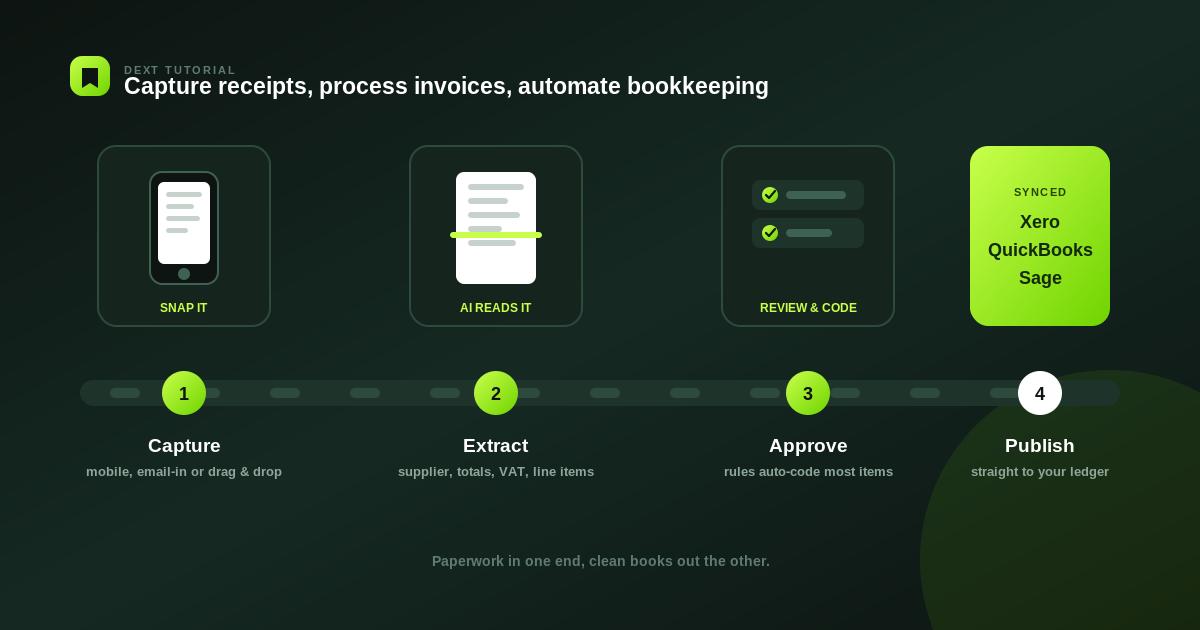
Dext helps businesses, accountants, and bookkeepers reduce manual data entry by capturing financial documents and extracting important information from them.
Instead of manually typing details from every receipt or invoice into accounting software, you can submit documents to Dext, review the extracted information, and publish approved data to your accounting workflow.
This tutorial explains how to use Dext step by step, from submitting your first receipt to publishing processed information.
Step 1: Create Your Dext Account
Start by creating your Dext account and completing the initial setup.
Once you’re inside the platform, you’ll be able to manage:
Documents
Receipts
Invoices
Suppliers
Categories
Users
Accounting connections
Published transactions
The exact options available can depend on your Dext product and plan.
Step 2: Connect Your Accounting Software
Before processing large numbers of documents, connect Dext to your accounting platform.
A connected workflow can look like:
Dext → Review → Publish → Accounting Software
Dext supports integrations with popular accounting platforms, although available integrations can vary by product, region, and plan.
Connecting your accounting software allows processed financial information to move into your existing bookkeeping workflow.
Step 3: Capture Your First Receipt
One of the easiest ways to start using Dext is with a receipt.
You can capture a receipt using a supported submission method, such as the Dext mobile app.
For example:
Purchase → Take a photo → Submit → Dext processes the receipt
The mobile workflow is useful when employees are travelling or making business purchases away from the office.
Step 4: Upload a Receipt
If the receipt is already stored on your computer, you can upload it through the Dext web interface.
The basic process is:
Open Dext → Upload Document → Select Receipt → Submit
Dext then processes the document and extracts relevant information.
Step 5: Submit Documents by Email
Dext also supports email-based document submission.
For example, when a supplier sends an invoice by email, you can forward the document through your Dext submission workflow.
The process becomes:
Supplier Email → Dext → Data Extraction → Review
This can reduce the need to download and manually enter every invoice.
Step 6: Let Dext Extract the Data
Once the document is submitted, Dext processes it and extracts available information.
Depending on the document, this may include:
Supplier
Date
Total
Tax
Currency
Invoice number
Line items
Dext’s document-processing technology is designed to extract financial information automatically.
Step 7: Review the Extracted Information
Don’t immediately publish every processed document.
Open the document and review the extracted information.
Check:
Supplier
Date
Amount
Tax
Currency
Category
Invoice number
Line items
If anything is incorrect, edit the information before publishing.
Step 8: Categorize the Transaction
Assign the appropriate accounting category to the transaction.
For example:
Office Supplies
Travel
Advertising
Software
Meals
The available categories depend on your connected accounting setup.
Correct categorization helps keep your financial records organized.
Step 9: Check the Supplier
Review the supplier information before publishing.
For example:
Supplier: Adobe
Category: Software
Amount: $XX
If the supplier is new, Dext may allow you to create or configure supplier information depending on your setup.
Step 10: Review Tax Information
Check the tax information extracted from the document.
For example:
Subtotal → Tax → Total
Make sure the extracted information matches the original receipt or invoice.
This is particularly important when financial documents contain multiple tax rates or currencies.
Step 11: Add Notes or Additional Information
If necessary, add notes to help your accounting team understand the transaction.
For example:
“Client meeting expense — Project ABC.”
Additional information can be useful when multiple employees or accountants are reviewing transactions.
Step 12: Publish the Document
Once you’ve checked the information, publish the transaction to your connected accounting software.
The workflow is:
Receipt/Invoice → Dext → Review → Publish → Accounting Software
Publishing transfers the processed information into the relevant accounting workflow.
Step 13: Check the Accounting Software
After publishing, open your connected accounting platform and verify that the transaction has been transferred correctly.
Check:
Supplier
Amount
Tax
Category
Date
Supporting document
This final check helps catch errors before completing your bookkeeping process.
Step 14: Process Multiple Documents
Once you’re comfortable with individual receipts, you can process multiple documents.
A typical bookkeeping workflow might look like:
Employee Receipts
↓
Dext Submission
↓
Automatic Data Extraction
↓
Bookkeeper Review
↓
Approval
↓
Publish to Accounting Software
This becomes especially useful for businesses processing a large number of transactions.
Step 15: Use Dext for Invoices
Dext isn’t limited to receipts.
You can also use it to process invoices.
For example:
Supplier sends invoice
↓
Invoice submitted to Dext
↓
Information extracted
↓
Bookkeeper reviews
↓
Invoice published
Review the supplier, invoice number, dates, totals, taxes, and other relevant information before publishing.
Step 16: Use the Mobile App for Employee Expenses
Employees can capture receipts immediately after making business purchases.
For example:
Employee buys business supplies
↓
Employee photographs receipt
↓
Receipt submitted to Dext
↓
Finance team reviews
↓
Transaction published
This reduces the risk of losing paper receipts.
Step 17: Organize Your Bookkeeping Workflow
Create a clear internal process for your team.
For example:
Employees
Capture and submit receipts.
Bookkeeper
Review extracted information.
Accountant
Check accounting treatment where necessary.
Accounting Software
Store the final transaction.
This creates clear responsibility at every stage.
Example Dext Workflow
Here’s a complete example:
Business Purchase
↓
Receipt Captured
↓
Dext Extracts Data
↓
Supplier Checked
↓
Amount & Tax Reviewed
↓
Category Selected
↓
Document Approved
↓
Published to Accounting Software
Best Practices
Capture Documents Immediately
Don’t wait until the end of the month to collect receipts.
Review Before Publishing
Automated extraction saves time, but financial information should still be checked.
Use Consistent Categories
Consistent categorization makes bookkeeping and reporting easier.
Train Employees
Make sure employees know how and when to submit receipts.
Keep Supporting Documents
Keep the original financial documents associated with the relevant transactions.
Check Your Accounting Integration
Make sure the correct accounting account, supplier, tax treatment, and category are being used.
Common Mistakes to Avoid
Uploading blurry receipts.
Forgetting to review extracted information.
Publishing incorrect categories.
Creating duplicate transactions.
Waiting too long to submit receipts.
Using inconsistent supplier information.
Not checking tax details.
Assuming automated extraction is always perfect.
Frequently Asked Questions
How do I use Dext for receipts?
Capture or upload the receipt, let Dext extract the information, review the details, and publish the transaction to your connected accounting software.
Can Dext process invoices?
Yes. Dext can process invoices and extract relevant information for accounting workflows.
Can I use Dext on my phone?
Yes. Dext provides a mobile app that can be used to capture financial documents such as receipts.
Does Dext automatically enter data?
Dext can automatically extract information from submitted documents, reducing the amount of manual data entry required.
Should I check Dext’s extracted information?
Yes. Always review financial information before publishing it to your accounting system.
Can employees submit receipts?
Yes. Businesses can set up workflows where employees capture and submit receipts for finance teams to review.
Conclusion
Dext makes bookkeeping more efficient by reducing the manual work involved in processing receipts, invoices, and other financial documents.
The basic workflow is simple:
Capture → Extract → Review → Categorize → Publish
Start with individual receipts, then expand the workflow to invoices, employee expenses, and larger document volumes.
The most important practice is to review extracted financial information before publishing it. This combines the efficiency of automation with the accuracy needed for accounting.


