Tutorial
Gamma Tutorial: How to Create AI Presentations Step by Step
Deals Stacks
Gamma Tutorial: How to Create AI Presentations Step by Step
Creating a professional presentation traditionally involves several separate tasks.
You need to decide what to say, organize your ideas, write the content, divide it into slides, choose layouts, find images, adjust fonts, and make sure the entire presentation looks consistent.
Gamma uses AI to make much of this process faster.
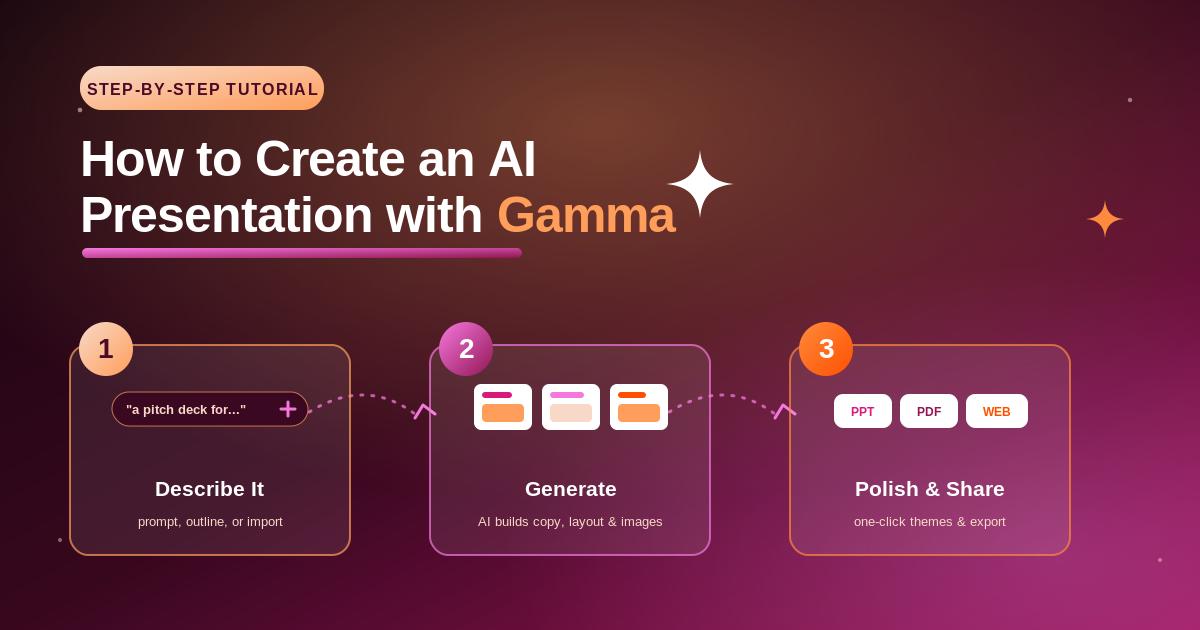
Instead of starting with an empty slide and manually designing everything, you can begin with a simple prompt, an outline, or existing content. Gamma can help transform that information into a structured visual presentation.
You can then customize the content, change the theme, add visuals, reorganize cards, and prepare the final presentation for sharing.
This tutorial walks you through the process from start to finish.
Step 1: Decide What Your Presentation Is About
Before opening Gamma, define your presentation clearly.
Do not begin with something too broad, such as:
“I need a presentation about marketing.”
Instead, make the topic more specific.
For example:
“I need a presentation explaining five ways small businesses can use AI in digital marketing.”
Now you have a clearer direction.
Also think about your audience.
Is the presentation for:
Students?
Clients?
Managers?
Investors?
Customers?
Employees?
The same topic should be presented differently depending on who will see it.
A presentation about artificial intelligence for beginners should use simpler language than one designed for experienced technology professionals.
Step 2: Open Gamma and Start a New Project
Open Gamma and sign in to your account.
From your workspace, start the process of creating new content.
Gamma’s interface and available options may change as the platform evolves, but you will typically have options for creating content with AI, working from existing material, or starting with more direct control.
For your first AI presentation, choose the AI-assisted creation workflow.
This allows you to see one of Gamma’s main advantages: turning a simple idea into a structured visual draft.
Step 3: Choose How You Want to Create
There are several ways you might begin a Gamma project.
You may want to:
Generate from an idea or prompt if you only have a topic.
Work from an outline or notes if you already know your structure.
Import or transform existing content if you already have written material.
The best option depends on how much work you have already completed.
If you are starting from zero, AI generation is usually the easiest place to begin.
If you already have detailed research, using your existing content can give you more control over what appears in the final presentation.
Step 4: Write a Good AI Prompt
Your prompt is one of the most important parts of the process.
A weak prompt might be:
“Create a presentation about social media.”
This gives the AI very little direction.
A stronger prompt would be:
“Create a professional 10-card presentation for small-business owners explaining how to build an effective social media marketing strategy. Cover choosing platforms, content planning, audience engagement, analytics, and common mistakes. Use simple English and practical examples.”
This prompt tells Gamma:
What the topic is.
Who the audience is.
How long the presentation should roughly be.
Which topics should be included.
What tone to use.
The more useful context you provide, the better the first draft is likely to be.
Step 5: Review the Generated Outline
Before focusing on colors and images, review the structure.
This is important.
A beautiful presentation with a weak structure is still a weak presentation.
Suppose your topic is:
“How AI Is Changing Digital Marketing.”
A logical structure might include:
Introduction.
What AI means in marketing.
AI for content creation.
AI for personalization.
AI in advertising.
AI for customer service.
Analytics and prediction.
Benefits.
Challenges and ethical considerations.
Future trends.
Conclusion.
Check whether the generated outline tells a clear story.
Ask:
Does the presentation begin logically?
Are important topics missing?
Are any sections repetitive?
Does the order make sense?
Does the conclusion connect with the main message?
Fix the structure before spending too much time on design.
Step 6: Choose a Theme
Next, choose a visual style that fits your presentation.
Gamma provides themes and design options that help create consistency across your content.
Do not choose a theme simply because it looks attractive.
Think about your audience.
For a corporate presentation, a clean professional style may work best.
For a creative portfolio, you may want something more expressive.
For an educational presentation, readability should be a priority.
For a startup pitch, a modern and confident design may be appropriate.
Your theme should support your message.
It should not compete with it.
Step 7: Generate the First Presentation
Once you are satisfied with your basic direction, generate the presentation.
Gamma will use your instructions and selected options to create an initial version.
This is where AI saves significant time.
Instead of manually building every slide or card, you receive a structured starting point.
However, do not assume the first version is finished.
Treat it as a draft.
Read every section carefully.
AI can create useful structure quickly, but it may also produce generic statements, repetitive wording, or information that needs verification.
The goal is not to accept everything.
The goal is to get to a strong starting point faster.
Step 8: Understand Gamma’s Card Structure
Gamma uses cards as the main building blocks of content.
A card works somewhat like a slide, but the format is more flexible and web-oriented.
Each card may contain:
A title.
Text.
Images.
Lists.
Charts.
Diagrams.
Embedded media.
Other visual elements.
Think of each card as one main idea.
Avoid putting five unrelated ideas on the same card.
For example, instead of creating one overloaded card titled:
“Benefits, Challenges, Examples, and Future of AI”
divide those ideas into separate sections.
This makes your presentation easier to understand.
Step 9: Edit the AI-Generated Text
Now read the content carefully.
Do not skip this step.
AI-generated presentations can sometimes sound polished while still being too generic.
Look for sentences such as:
“AI is revolutionizing the world and transforming businesses in unprecedented ways.”
This sounds impressive but says very little.
Replace vague statements with useful information.
For example:
“AI helps marketing teams analyze customer behavior, automate repetitive tasks, and personalize content for different audience segments.”
The second version is clearer because it explains what AI actually does.
Good presentation writing should be:
Clear.
Specific.
Concise.
Relevant.
Easy to understand.
Step 10: Use AI to Rewrite Content
If a section is too long or unclear, you can use Gamma’s AI-assisted editing capabilities to help revise it.
For example, you may want to:
Shorten a paragraph.
Simplify technical language.
Rewrite something professionally.
Expand a short explanation.
Change the tone.
Create a clearer summary.
Imagine a card contains 250 words.
That is probably too much for most presentation situations.
Use AI to shorten the content, then manually review the result.
Remember:
AI edits quickly. You decide whether the edit is good.
Step 11: Keep Each Card Focused
One of the most common presentation mistakes is adding too much information.
A presentation is not the same as a research paper.
Your audience should be able to quickly understand the main point of each card.
A useful principle is:
One card = one main idea.
For example:
Card 1: Introduction to AI marketing.
Card 2: AI content creation.
Card 3: Personalization.
Card 4: Marketing automation.
Card 5: Predictive analytics.
This creates a clearer flow.
If one card becomes too long, consider splitting it into two.
Step 12: Add Relevant Images
Visuals can make your presentation more engaging.
Gamma can help incorporate visual content into your presentation.
However, avoid adding random images simply to fill empty spaces.
Suppose your card explains AI-powered customer service.
A relevant visual could show:
A chatbot interaction.
A customer-support workflow.
An AI assistant concept.
A simple process illustration.
An unrelated image of a futuristic robot may look impressive but provide little useful information.
Every image should have a reason to be there.
Step 13: Use AI-Generated Images Carefully
AI-generated images can be useful when you need a specific visual concept.
For example, you might request a visual representing:
“A modern marketing team using AI analytics dashboards in a professional office environment.”
This may create a more relevant visual than searching through generic stock photos.
However, inspect AI-generated images carefully.
Look for:
Distorted text.
Incorrect objects.
Unnatural hands or faces.
Visual inconsistencies.
Misleading representations.
Images should improve credibility, not reduce it.
Step 14: Add Charts When Data Matters
If your presentation includes numbers, consider whether a chart would communicate them more effectively.
Imagine you want to show annual growth:
2023 – 20%
2024 – 35%
2025 – 55%
A chart may make the trend easier to understand than a paragraph.
Use charts when they help explain:
Growth.
Comparisons.
Percentages.
Trends.
Distribution.
Performance.
Do not use a chart simply because it looks professional.
Also, verify every number yourself.
AI should never be trusted to invent statistics for a real business or academic presentation.
Step 15: Add Diagrams for Processes
Some ideas are easier to understand visually.
For example, imagine you want to explain a marketing workflow:
Audience Research → Content Creation → Campaign Launch → Analytics → Optimization
A diagram may communicate this process more clearly than a long paragraph.
Use diagrams for:
Processes.
Timelines.
Workflows.
Hierarchies.
Relationships.
Customer journeys.
Step-by-step systems.
Visual communication should make complicated information simpler.
Step 16: Customize the Design
Once your content is strong, refine the design.
Review:
Typography.
Spacing.
Card layouts.
Images.
Visual balance.
Theme consistency.
Do not try to make every card completely different.
Consistency makes a presentation feel professional.
Use similar heading styles.
Maintain consistent visual language.
Avoid using too many fonts.
Keep spacing comfortable.
Your audience should focus on the message—not wonder why every section looks like it came from a different presentation.
Step 17: Add Your Branding
If the presentation represents a company or personal brand, customize it appropriately.
Depending on your plan and available Gamma features, you may be able to adjust branding-related elements.
Consider using:
Your logo.
Brand fonts.
Appropriate visual styles.
Consistent imagery.
Company identity elements.
Avoid over-branding.
A huge logo on every card can distract from the content.
Branding should create consistency without overwhelming the presentation.
Step 18: Add Links and Interactive Content
One advantage of digital presentations is that they can include more than static text and images.
Depending on your project, you may add:
Links.
Embedded content.
Videos.
Interactive media.
External resources.
This can make your presentation more useful when shared online.
For example, a product presentation might include a link to:
A product demo.
A pricing page.
A case study.
A signup page.
A supporting resource.
Only add interactive elements when they serve a clear purpose.
Step 19: Reorder Your Cards
Once the presentation is nearly complete, review the overall flow again.
Sometimes individual cards are good but appear in the wrong order.
Imagine your presentation discusses pricing before explaining what the product does.
That may confuse the audience.
Reorganize the cards so the story progresses naturally.
A common structure is:
Problem → Context → Solution → Benefits → Evidence → Next Step
Your exact structure will depend on the presentation.
Think like your audience.
What do they need to understand first?
Step 20: Remove Unnecessary Content
AI can generate a lot of content.
More content is not always better.
Remove anything that:
Repeats an earlier point.
Does not support the main message.
Adds unnecessary complexity.
Feels generic.
Distracts from the purpose.
If your 15-card presentation communicates the same message more effectively in 10 cards, use 10.
Good editing often means removing information.
Step 21: Fact-Check Everything
This is one of the most important steps in any AI content workflow.
AI-generated content can contain errors.
Verify:
Statistics.
Dates.
Company information.
Quotes.
Scientific claims.
Historical facts.
Financial figures.
Technical details.
Sources.
Do not assume something is correct because it sounds professional.
If the presentation is for a client, investor, classroom, or public audience, factual errors can seriously damage credibility.
Step 22: Add Your Own Expertise
A presentation generated entirely by AI can feel generic.
Your knowledge is what makes it valuable.
Add:
Your experience.
Original examples.
Real company data.
Personal insights.
Customer stories.
Research findings.
Case studies.
Unique recommendations.
AI can help create the framework.
Your expertise should make the presentation worth viewing.
Step 23: Collaborate With Your Team
If you are creating the presentation with others, use Gamma’s collaboration features where appropriate.
For example:
A writer can improve the content.
A designer can review visual consistency.
A manager can check the business message.
A subject expert can verify accuracy.
Collaboration works best when everyone has a clear responsibility.
Avoid having five people randomly rewrite the same card.
Step 24: Preview the Presentation
Before sharing anything, preview the entire presentation.
Do not only inspect individual cards.
Experience it as your audience will.
Check:
Does the first card create interest?
Does each section connect logically?
Is any card overloaded?
Are images relevant?
Is the text readable?
Are there spelling mistakes?
Does the presentation end clearly?
A presentation may look good during editing but feel different when viewed from beginning to end.
Step 25: Share Your Gamma Presentation
Once the presentation is ready, you can use Gamma’s available sharing options to make it accessible to your intended audience.
Before sharing, review permissions carefully.
Ask:
Should anyone with the link be able to access it?
Is the information confidential?
Should collaborators be able to edit?
Is this intended for public viewing?
This is especially important for business presentations containing internal or client information.
Step 26: Export When Necessary
Depending on your plan and Gamma’s current supported features, you may also have export options for using your content outside Gamma.
Exporting can be useful when:
A client requests a traditional presentation file.
You need an offline copy.
Your organization uses another presentation system.
You need a PDF version.
Always inspect the exported file.
Formatting can sometimes change during conversion.
Check:
Text placement.
Fonts.
Images.
Spacing.
Page breaks.
Charts.
Overall layout.
Never assume an exported presentation looks identical without reviewing it.
Example: Creating an AI Marketing Presentation
Suppose you need to create a presentation titled:
“5 Ways Small Businesses Can Use AI in Marketing.”
Your process could look like this.
First, define your audience:
Small-business owners with limited AI experience.
Then create a detailed prompt:
“Create a professional 10-card presentation for small-business owners explaining five practical ways to use AI in marketing. Cover content creation, email marketing, customer service, advertising, and analytics. Use simple English, practical examples, and finish with a beginner-friendly action plan.”
Review the outline.
Remove unnecessary sections.
Add missing information.
Choose an appropriate theme.
Generate the presentation.
Then review every card.
Replace generic AI statements with practical examples.
Add verified statistics only where necessary.
Include relevant visuals.
Add your own experience.
Finish with a clear action plan.
The result will usually be much stronger than simply entering:
“Make an AI marketing presentation.”
Common Gamma Mistakes to Avoid
Using a vague prompt: Give AI clear context about the topic, audience, and goal.
Accepting the first draft: AI-generated content should be reviewed and improved.
Putting too much text on cards: Keep each card focused.
Using random visuals: Choose images that support the message.
Trusting AI-generated facts: Verify important claims and numbers.
Over-designing: A clean presentation is often more effective than a visually crowded one.
Ignoring the audience: Design and language should match the people viewing the presentation.
Skipping the final preview: Always review the complete experience before sharing.
A Simple Gamma Workflow for Beginners
If you are using Gamma for the first time, follow this workflow:
1. Define your topic.
2. Identify your audience.
3. Write a detailed prompt.
4. Generate or review the outline.
5. Choose an appropriate theme.
6. Generate your first draft.
7. Edit every card.
8. Shorten unnecessary text.
9. Add relevant visuals and data.
10. Fact-check important information.
11. Add your own expertise and examples.
12. Preview the complete presentation.
13. Share or export it as needed.
Do not try to use every feature on your first project.
Focus on creating one strong presentation from beginning to end.
Frequently Asked Questions
How do I create a presentation with Gamma?
Start a new project, choose an AI-assisted creation method, provide your topic, prompt, outline, or existing content, review the proposed structure, select an appropriate visual style, and generate your first draft. Then edit and customize it before sharing.
Can Gamma generate a complete presentation from a prompt?
Gamma can use a prompt to generate a structured presentation draft containing content and visual layouts. The result should still be reviewed, fact-checked, and customized.
Can I edit AI-generated Gamma presentations?
Yes. You can modify generated content, reorganize cards, adjust visual elements, change styling, and refine the presentation according to the available editing features.
Can I add my own images?
Gamma supports adding and working with visual content. The exact available media and AI image options can depend on current features and plan access.
Can Gamma create charts and diagrams?
Gamma supports visual content formats that can help present data, processes, and structured information. Always verify underlying data before presenting it.
Can I use Gamma for business presentations?
Yes. Gamma can be used for business proposals, sales decks, reports, strategy presentations, training materials, product overviews, and other professional content.
Can I export a Gamma presentation?
Gamma provides export capabilities, with exact formats and availability depending on current product features and plan. Always check the exported version for formatting differences.
Conclusion
Creating an AI presentation with Gamma is relatively simple, but creating a good presentation still requires thoughtful human input.
Start with a clear topic and audience.
Give Gamma a detailed prompt rather than a vague instruction.
Review the structure before generating the full presentation.
Once you have your first draft, edit the content carefully, remove generic text, add meaningful visuals, verify facts, and include your own knowledge and examples.
The most effective workflow is:
Idea → Prompt → Outline → Generate → Edit → Visualize → Fact-check → Personalize → Preview → Share.
Gamma’s biggest advantage is that you do not have to begin with a blank slide.
AI can help create the first structure and visual direction quickly, allowing you to spend more time improving the message itself.
But AI should be the starting point, not the final editor.
When you combine Gamma’s AI capabilities with accurate information, thoughtful storytelling, and your own expertise, you can create presentations that are not only faster to produce but also clearer, more useful, and more engaging for your audience.


