How-to
How to Use GetResponse for Email Marketing and Automation
Deals Stacks
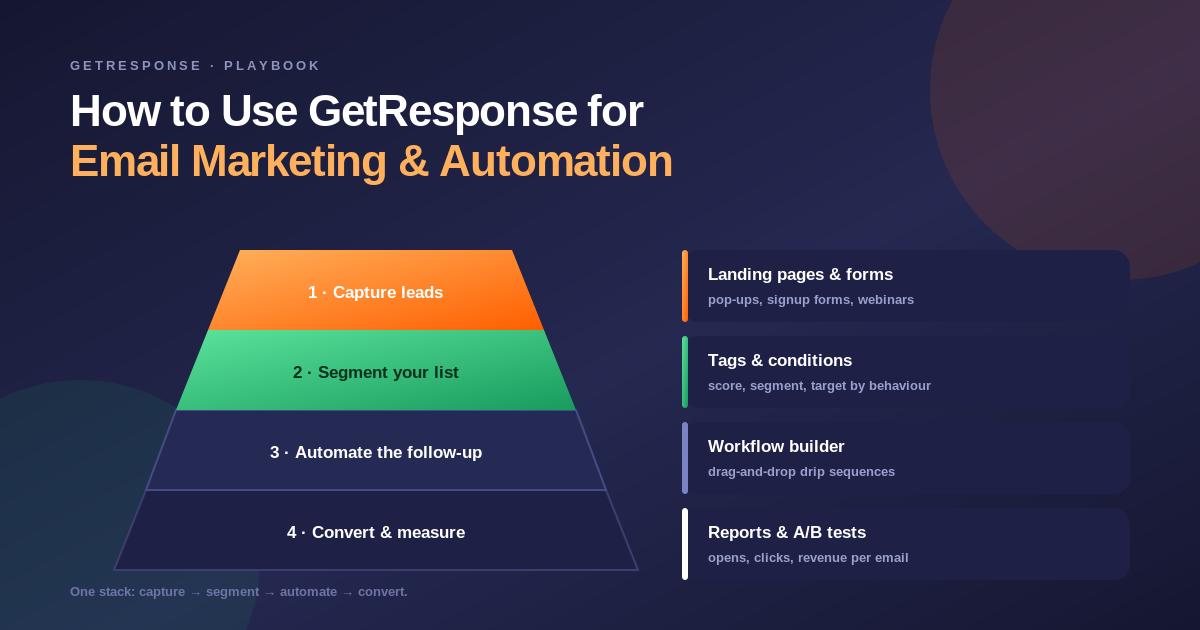
How to Use GetResponse for Email Marketing and Automation
GetResponse is an all-in-one marketing platform that helps businesses create email campaigns, collect leads, automate customer communication, build landing pages, and track campaign performance.
If you are new to GetResponse, you don’t need to use every feature immediately. A simple setup can help you understand the platform before moving to advanced automation.
This guide explains how to use GetResponse step by step.
Step 1: Create Your GetResponse Account
Create your GetResponse account and complete the basic setup.
After signing in, you can access areas such as:
Contacts
Email Marketing
Automation
Landing Pages
Forms
Conversion Funnels
Webinars
Analytics
Start with your contact list and email campaign.
Step 2: Create a Contact List
Go to the Contacts section and create a list for your subscribers.
For example:
Newsletter Subscribers
or
Potential Customers
You can add contacts manually or import an existing list, provided you have the appropriate permission to email those contacts.
Step 3: Segment Your Contacts
Don’t treat every subscriber the same.
Create segments based on information such as:
Customer type
Location
Interests
Purchase behavior
Email engagement
Signup source
For example:
New Subscribers
Active Customers
Inactive Subscribers
This allows you to send more relevant messages.
Step 4: Create an Email Campaign
Go to the email marketing section and create a new newsletter or campaign.
Add:
Sender name
Sender email
Subject line
Preview text
Email content
Keep your campaign focused on one main objective.
Step 5: Design Your Email
Use the GetResponse email editor to create your email.
You can add:
Text
Images
Buttons
Headings
Videos
Social links
Calls to action
For example, an ecommerce campaign could use:
Product image → Product benefit → Offer → Buy Now button
Step 6: Write a Strong Subject Line
Your subject line should clearly communicate the value of the email.
Examples:
Your Free Marketing Guide Is Here
5 Ways to Improve Your Email Campaigns
New Products Are Now Available
Avoid misleading or overly aggressive subject lines.
Step 7: Test Your Email
Before sending the campaign, check:
Spelling
Links
Images
Buttons
Mobile layout
Personalization
Sender information
Send a test email to yourself before sending it to your complete audience.
Step 8: Send or Schedule the Email
Once your email is ready, choose whether to:
Send Now
or
Schedule
Scheduling is useful when you want to plan campaigns in advance.
Step 9: Create a Landing Page
Use GetResponse’s landing-page tools to create a page for lead generation.
A simple landing page can contain:
Headline → Benefits → Form → Call to Action
For example:
“Download Our Free Email Marketing Guide”
The visitor enters their email address and becomes a new lead.
Step 10: Connect the Signup Form
Connect your landing-page form to the appropriate contact list.
Your workflow can then become:
Visitor → Form → Contact List → Welcome Email
This automatically adds new subscribers to your marketing process.
Step 11: Create an Automated Welcome Email
Create an automation workflow that sends a welcome email whenever someone joins your list.
Example:
New Subscriber → Welcome Email
Your welcome email can:
Thank the subscriber
Explain what they will receive
Introduce your business
Provide a useful resource
Direct them to your website
Step 12: Build an Email Automation Sequence
You can create a longer customer journey.
For example:
Signup
↓
Welcome Email
↓
Wait 2 Days
↓
Educational Email
↓
Wait 3 Days
↓
Product Email
↓
Special Offer
This lets GetResponse communicate with subscribers automatically.
Step 13: Add Conditions
You can make your automation more personalized based on subscriber actions.
For example:
Email sent → Subscriber clicks → Send product offer
If the subscriber doesn’t click:
Email sent → No click → Send another educational email
This creates different customer journeys based on behavior.
Step 14: Create a Lead Generation Funnel
A simple funnel can look like:
Social Media Ad
↓
GetResponse Landing Page
↓
Signup Form
↓
Welcome Email
↓
Automated Nurturing
↓
Product Offer
↓
Conversion
This allows you to manage several stages of lead generation within one marketing workflow.
Step 15: Use Ecommerce Features
If you run an online store, GetResponse can be used for ecommerce marketing.
You can create campaigns around:
Abandoned carts
Product recommendations
Previous purchases
Customer segments
Promotions
Price drops
Repeat purchases
This can help businesses create more personalized campaigns.
Step 16: Track Campaign Performance
After sending your campaign, review its performance.
Important metrics include:
Opens
Clicks
Conversions
Unsubscribes
Subscriber activity
Revenue, where available
Don’t focus on one metric alone. Look at the overall customer journey.
Step 17: Improve Your Campaign
Use your campaign results to improve future emails.
For example:
If one subject line gets more engagement, use similar approaches in future campaigns.
If a particular product email generates more clicks, create more content around that product or topic.
Example GetResponse Workflow
A complete beginner workflow could look like:
Landing Page
↓
Signup Form
↓
Contact List
↓
Welcome Email
↓
Educational Emails
↓
Product Recommendation
↓
Special Offer
↓
Purchase
↓
Follow-Up Email
Best Practices
Keep Your Emails Relevant
Send content that matches subscriber interests.
Segment Your Audience
Different customers may need different messages.
Use Automation Carefully
Automate repetitive communication but keep the customer experience natural.
Test Before Sending
Always check emails on different devices.
Use Clear CTAs
Make it obvious what the reader should do next.
Monitor Results
Use campaign analytics to improve your marketing.
Keep Your Lists Clean
Remove or manage inactive contacts according to your email strategy and applicable rules.
Common Mistakes to Avoid
Sending emails without proper permission.
Using misleading subject lines.
Sending too many promotional emails.
Ignoring mobile users.
Creating overly complicated automation.
Not testing links.
Sending irrelevant content.
Ignoring campaign analytics.
Frequently Asked Questions
How do I start using GetResponse?
Create an account, build your contact list, create an email campaign, and then gradually add landing pages and automation.
Can GetResponse automate email marketing?
Yes. You can create automated workflows based on subscriber actions and conditions.
Can I create a landing page in GetResponse?
Yes. GetResponse includes landing-page tools for lead generation and marketing campaigns.
Can I use GetResponse for ecommerce?
Yes. GetResponse provides ecommerce-focused features for campaigns, customer segmentation, product recommendations, and automated marketing.
How do I improve GetResponse campaigns?
Review campaign analytics, test subject lines and content, segment your audience, and use automation based on customer behavior.
Conclusion
GetResponse can help businesses manage the complete email marketing process from lead generation to automation and conversion.
The easiest way to get started is:
Create List → Build Campaign → Create Landing Page → Add Automation → Segment Audience → Track Results
Start with a simple campaign and gradually add more advanced workflows as you understand your audience.
With consistent testing, segmentation, and automation, GetResponse can become a central part of your email marketing strategy.


