How-to
How to Use Hubstaff to Track Employee Time and Manage Remote Teams
Deals Stacks
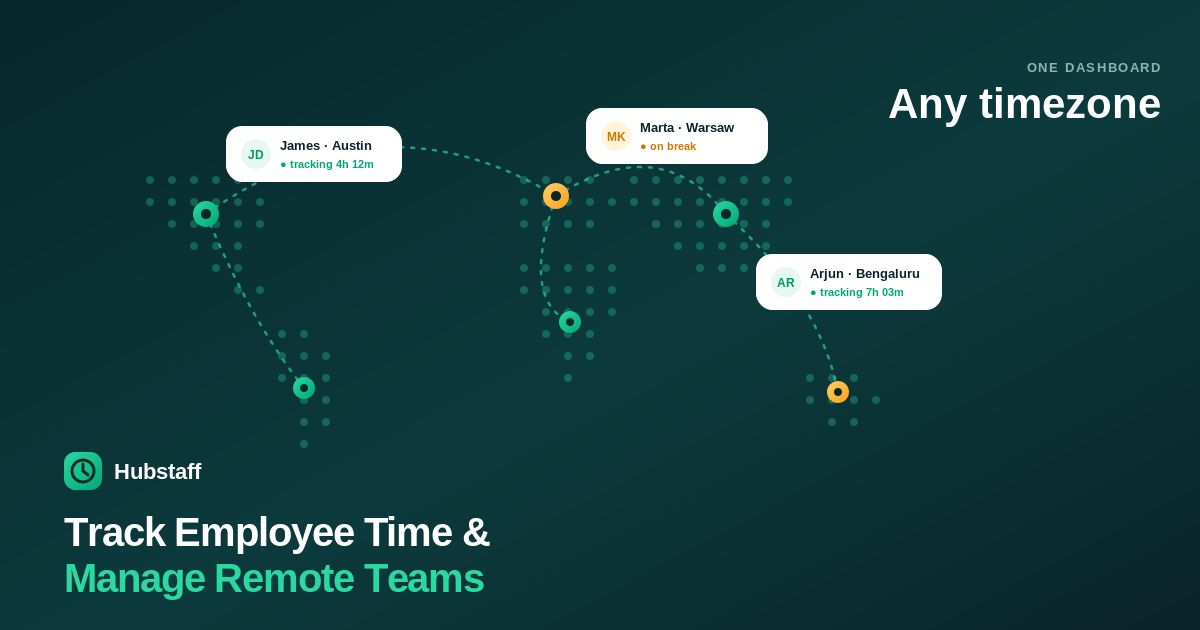
How to Use Hubstaff to Track Employee Time and Manage Remote Teams
Tracking employee work hours accurately is essential for businesses that manage remote, hybrid, or office-based teams. Manual timesheets and spreadsheets can lead to payroll errors, inaccurate billing, and reduced visibility into project progress.
Hubstaff provides a simple solution by combining time tracking, project management, productivity monitoring, scheduling, and payroll tools into one platform. Whether you’re a small business owner, agency manager, freelancer, or HR professional, Hubstaff can help you manage your workforce more efficiently.
This guide explains how to use Hubstaff step by step.
Step 1: Create a Hubstaff Account
Visit the Hubstaff website and sign up for an account using your business email address.
After registration, create your organization by entering basic details such as your company name, time zone, and preferred settings.
Step 2: Add Team Members
Invite employees, freelancers, or contractors to your workspace.
Assign appropriate roles such as:
Owner
Administrator
Manager
Member
Each team member receives an email invitation to join your organization.
Step 3: Create Projects
Organize work by creating projects.
Examples include:
Website Development
Marketing Campaign
Customer Support
Graphic Design
Software Development
Assign employees to the correct projects so their tracked hours are recorded accurately.
Step 4: Install the Hubstaff App
Ask team members to install the Hubstaff desktop or mobile application.
The app allows employees to:
Start and stop timers
Switch between projects
Record work hours
Track productivity
Step 5: Start Tracking Time
When work begins:
Open Hubstaff.
Select the project.
Click Start Timer.
Complete your work.
Stop the timer when finished.
Hubstaff automatically records the time worked for each project.
Step 6: Review Timesheets
Managers can review employee timesheets from the dashboard.
The reports include:
Daily hours
Weekly hours
Project hours
Attendance
Overtime
This helps ensure accurate payroll and client billing.
Step 7: Monitor Productivity
Hubstaff provides productivity reports that show how time is being spent across projects.
Depending on your organization’s settings, managers can review activity levels and project progress to identify workflow improvements. Productivity insights should be used responsibly and in accordance with company policies and applicable privacy laws.
Step 8: Schedule Employees
Use Hubstaff’s scheduling tools to:
Create shifts
Assign working hours
Plan workloads
Track attendance
Scheduling helps teams stay organized and reduces scheduling conflicts.
Step 9: Manage Payroll
Hubstaff can simplify payroll by using approved work hours.
Before processing payments:
Review timesheets
Verify employee hours
Check overtime
Approve tracked time
Always confirm payroll details before making payments.
Step 10: Generate Reports
Hubstaff automatically generates reports that help managers understand:
Employee productivity
Project progress
Budget usage
Billable hours
Team performance
These reports support better business decisions and resource planning.
Tips for Using Hubstaff Effectively
Create separate projects for different clients.
Ask employees to start the timer as soon as work begins.
Review timesheets weekly.
Use reports to improve efficiency rather than micromanage staff.
Keep project information organized.
Explain time-tracking policies clearly to your team.
Connect Hubstaff with your existing business tools through available integrations.
Common Mistakes to Avoid
Forgetting to start the timer.
Tracking time under the wrong project.
Not reviewing timesheets before payroll.
Ignoring productivity reports.
Failing to organize projects properly.
Using monitoring features without communicating expectations to employees.
Frequently Asked Questions
Is Hubstaff free?
Hubstaff offers a free plan with basic features, while advanced capabilities such as payroll, scheduling, and detailed reporting are available through paid plans.
Can Hubstaff track remote employees?
Yes. Hubstaff is designed for remote, hybrid, and distributed teams, offering time tracking, project management, and productivity reporting.
Does Hubstaff support payroll?
Yes. Hubstaff includes payroll-related features that can calculate payments based on approved tracked hours.
Can freelancers use Hubstaff?
Yes. Freelancers can use Hubstaff to track billable hours, organize projects, and create accurate work records for clients.
Does Hubstaff work on mobile devices?
Yes. Hubstaff offers mobile apps that allow users to track time, manage projects, and view work activity while on the go.
Conclusion
Hubstaff makes employee time tracking and workforce management straightforward by bringing together time tracking, project organization, productivity reporting, scheduling, and payroll tools in one platform. By following the steps in this guide, businesses can improve accuracy, reduce administrative work, and gain better visibility into how projects are progressing.
Whether you manage a small remote team or a large distributed workforce, using Hubstaff consistently can help streamline operations and support more informed management decisions.


